 ObjToSchematic Wiki
Quick Start
Getting started in ObjToSchematic.
ObjToSchematic is a tool for converting 3D models (and other things) into Minecraft blocks. To get started, visit the editor.
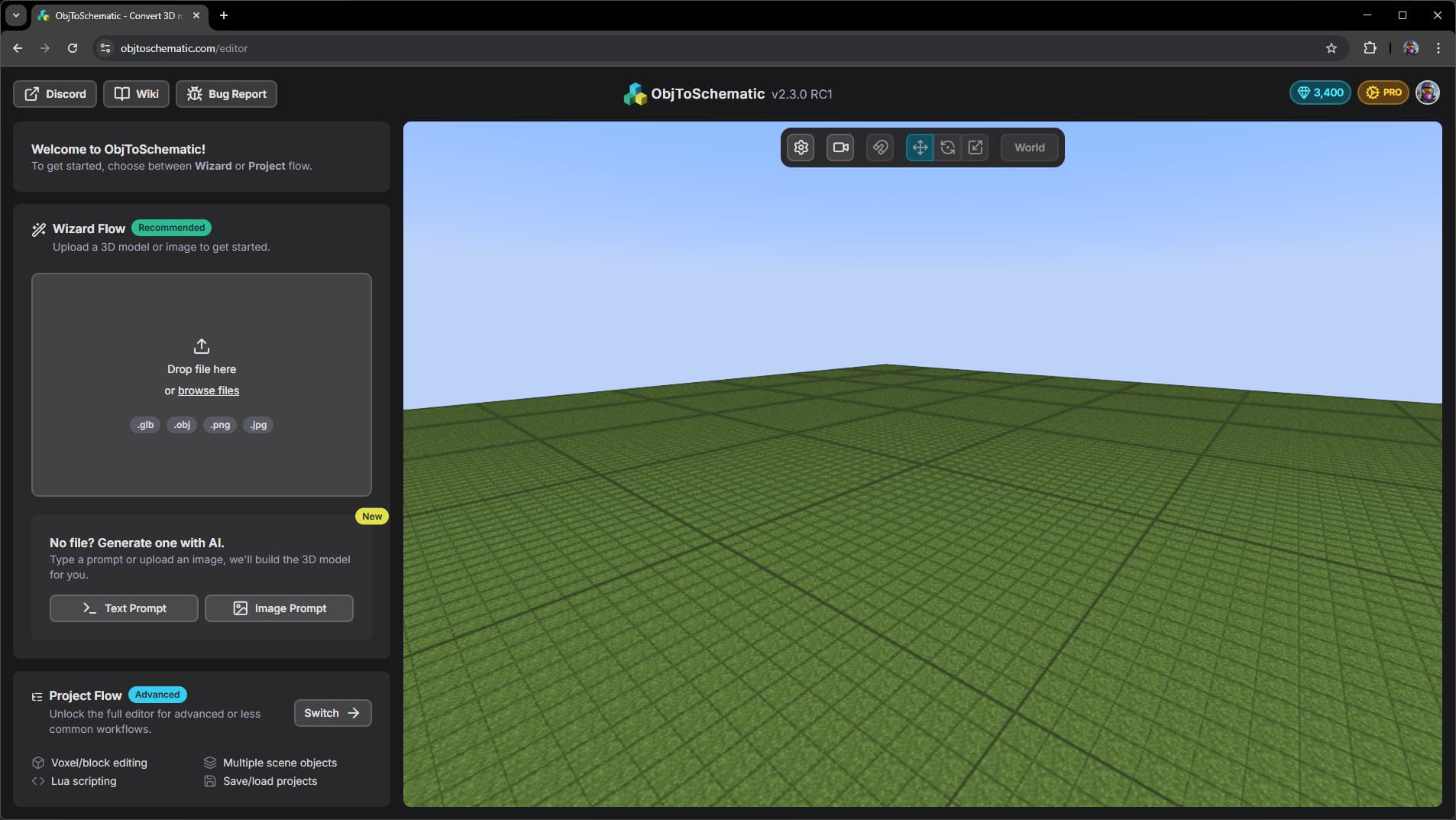
The editor has two workflows: Wizard and Project. You don't need to know the details yet, but for this guide we'll use the Wizard workflow.
The Wizard workflow is the simplest way to go from a 3D model to Minecraft blocks. The Project workflow offers more control and advanced features but is a bit more involved so we'll cover it in following guides.
Importing a Model
The first thing you need to do is find a 3D model and drag-drop or click to upload it into the wizard.
If you don't have a 3D model you can generate one with AI using either a text prompt or an image prompt, read more here.
When the file finishes loading it will be automatically sized and converted into blocks.
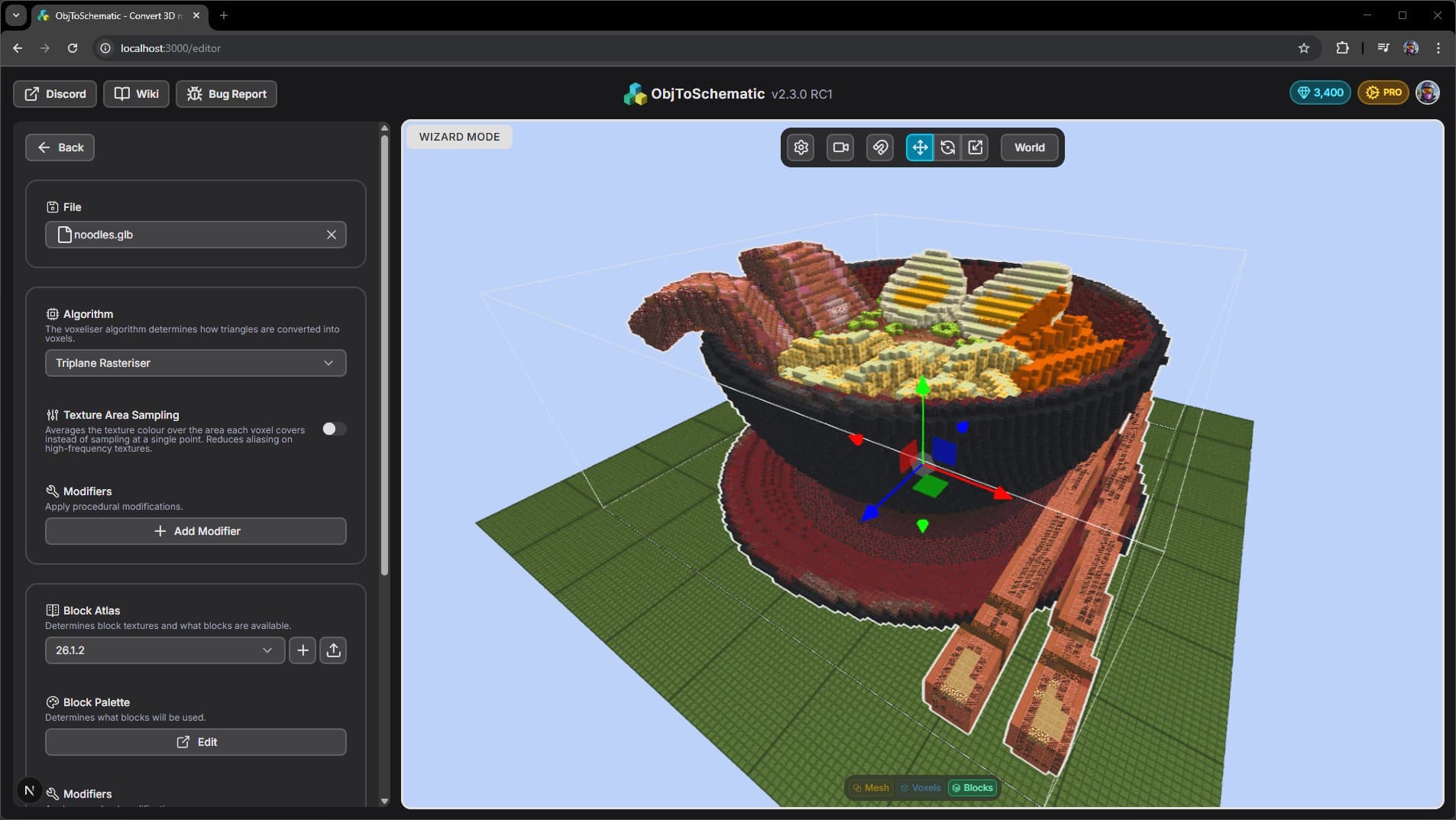
You can move , rotate , and scale the model by selecting the buttons in the viewport toolbar and dragging the 3D gizmo. Any edits you make will cause the blocks to be automatically regenerated.
On the left panel are settings that control how the model is converted into blocks. It is split into 4 sections: import, voxels, blocks, export. The wizard works by converting the model into voxels and then into blocks.
You can change whether to view the model, voxels, or blocks by changing the view on the bottom of the viewport.
Changing any setting will cause the blocks to be automcatically regenerated. Play around with the settings to find something that you like.
Voxel Settings
- Algorithm - This determines how each triangle in the model is voxelised. Picking which to use simply comes down to choosing which one looks the best for your model.
- Texture Area Sampling - If your model has high-detail/frequency textures then you may want this setting enabled. It will make the voxels less noisy at the cost of looking more blurry.
- Modifiers - You can add a list of modifiers to procedurally apply different effects. Modifiers are very powerful and can be used to create very stylised looks. There's many types of modifiers and we have a separate page to go over them, more info here.
Block Settings
- Block Atlas - Determines which blocks are available and what those blocks look like. The editor comes with atlases for Minecraft 1.13 up to the most recent version of Minecraft. Custom block atlases can be used to support custom resource packs, modded blocks, or any other Minecraft version, more info here.
- Block Palette - Determines which blocks should and shouldn't be used.
- Modifiers - Just like with voxels you can procedurally apply modifiers to blocks, more info here.
Exporting to Minecraft
Once you are happy with how the blocks look you're ready to export them into Minecraft. There are multiple ways to do this, choose the one that best suits you.
Datapack (Recommended, Vanilla)
Using a datapack requires a quick one-time setup. After that it is then as simple as drag-dropping a file into a folder and running a command inside your world.
If you haven't setup a datapack yet, download the Template Datapack and place the ots_builds folder into your world's "datapack" directory. It should look something like this:
You verify the datapack is setup correctly by loading into your Minecraft world and using the /datapack list command. It should show the ots_builds datapack as being enabled.
With the datapack set up, in the editor select the export type as "MCFunction", click "Download" and move the downloaded file into the functions folder of the ots_builds datapack.
Back in your Minecraft world, type /reload, followed by /function ots_builds:apple but use the model name you downloaded instead of the example apple.
Command Blocks (Vanilla)
Use command blocks only for small builds. Each command block is limited to 32,500 characters, so large builds may need ot be split across multiple commands.
In the editor, select "Command Blocks" and click "Download". A .zip file will be downloaded with commands to use and a README file with instructions.
Litematica Mod (Modded)
The Litematica mod allows pasting .litematic, .schematic, and .schem files into your world.
The editor supports exporting your block build as each of these three formats. The .litematic format is best and the .schematic format should be avoided as it does not support many newer Minecraft blocks.
When you download the file, place it in the .minecraft/worlds/MyWorld/schematics folder and it will be detected by Litematica. A video tutorial on how to use Litematica can be found here.
FAWE Plugin (Server)
The FastAsyncWorldEdit (a.k.a. FAWE) plugin enables world editing features.
When you download as .schem or legacy .schematic, place the file in the server/plugins/FastAsyncWorldEdit/schematics folder. When in-game use //schem load filename and then //paste. Visit the docs for more info.