 ObjToSchematic Wiki
Custom Atlases
Create a custom atlas for a specific Minecraft version, resource pack, or mod.
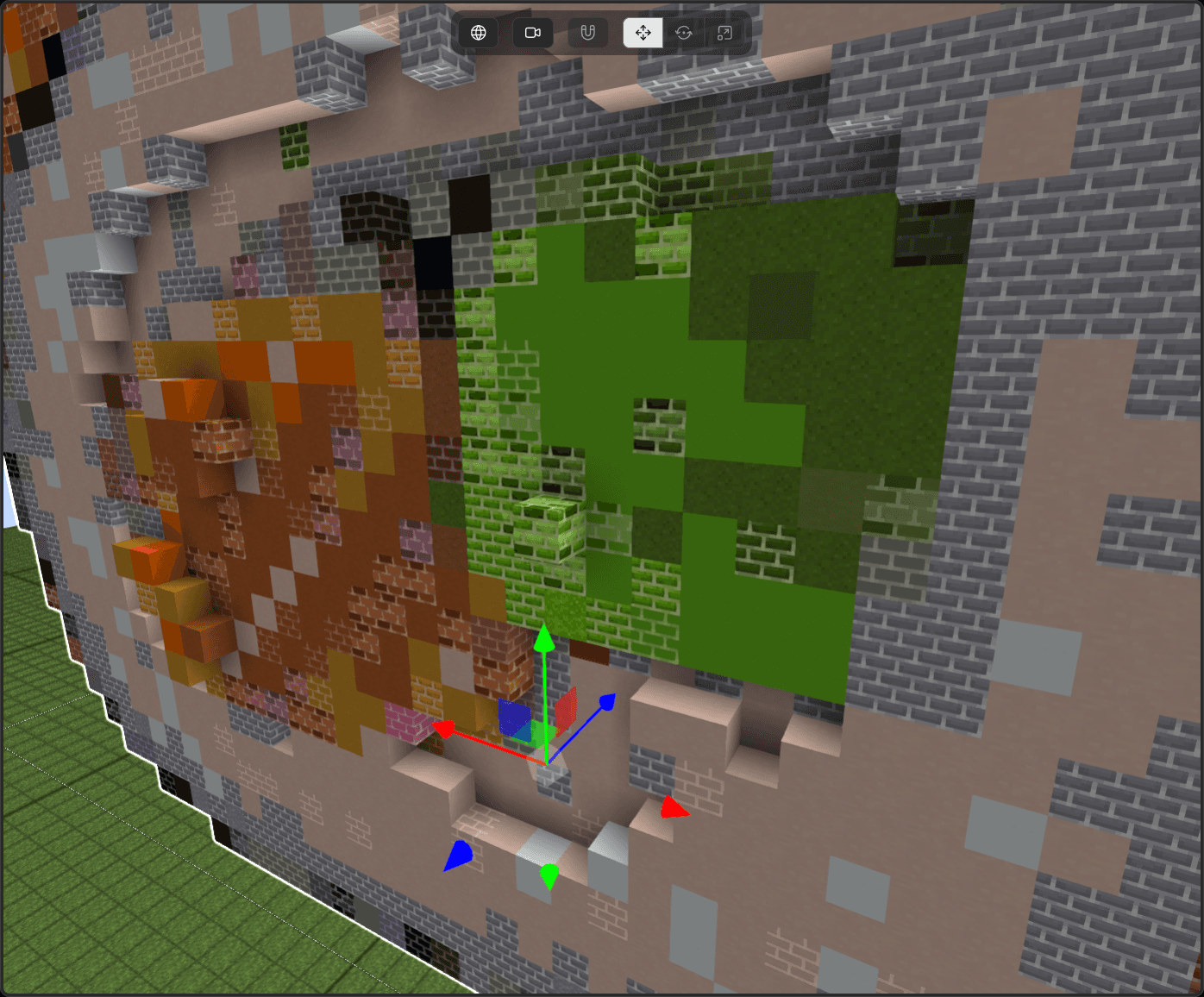
Example custom atlas using modded blocks from the ColorBricks16 mod.
The Atlas Creator Tool is the single unified tool for
- being able to target a specific Minecraft version,
- using a custom resource pack for textures and colour lookups,
- importing custom blocks from mods.
How Atlases Work
For ObjToSchematic to work it needs to read the block data from the game. Minecraft versions, resource packs, and mods are all organised in similar ways.
All assets are stored in the assets directory and followed by a namespace.
For Minecraft assets that's the minecraft namespace and for any mod that's in the my_mod namespace.
ObjToSchematic will scan each of these namespaces for model files and blockstate files and then in the tool you can choose which blocks to include.
When the creation process has finished you will have an .ots_atlas file. This file determines:
- What blocks ObjToSchematic has available to it to use.
- What the block textures look like.
- How the voxel to block colour conversions are calculated.
Creating a Custom Atlas
To get started, visit the Atlas Creator Tool.
1. Assets
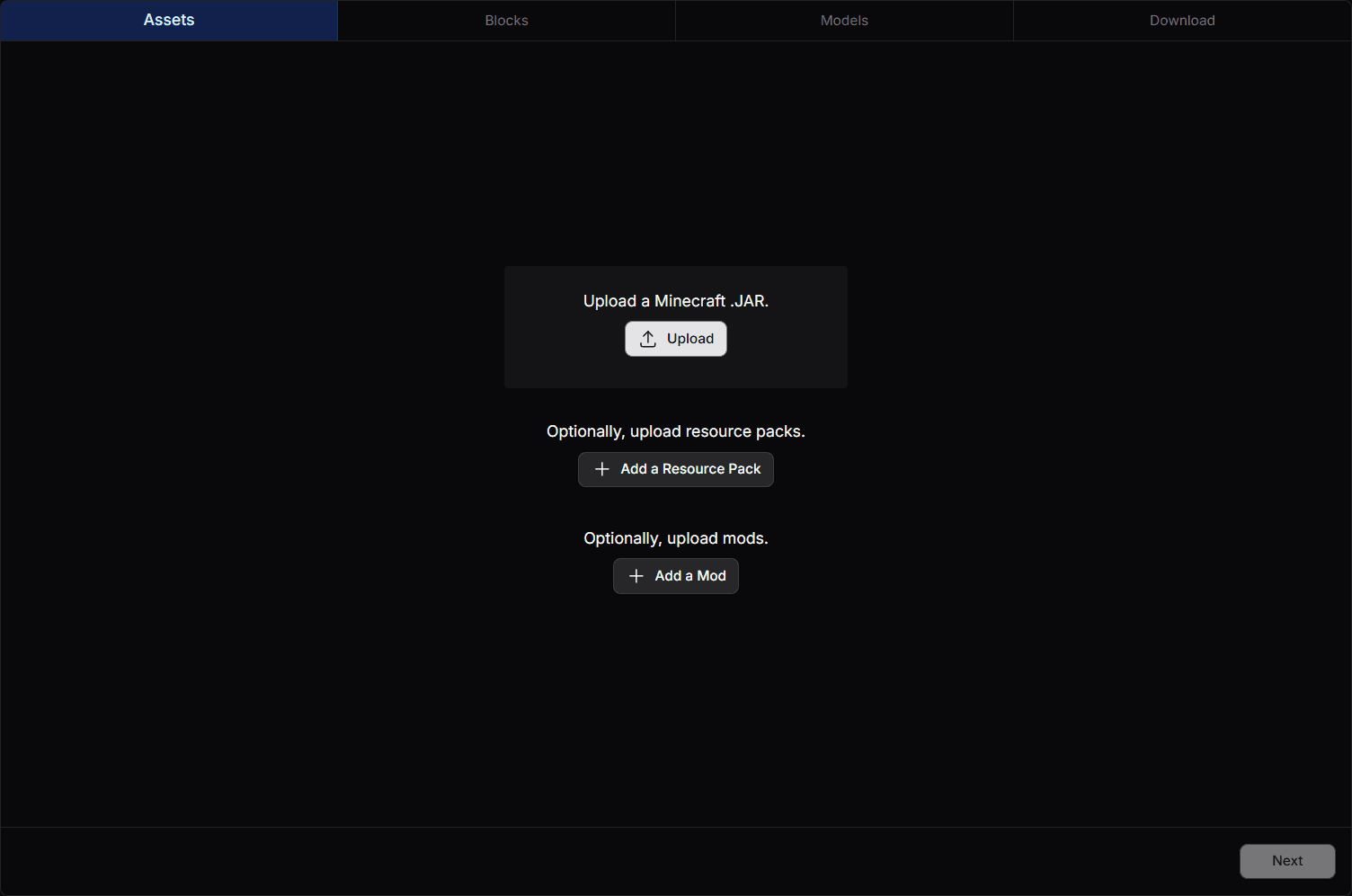
If you choose an older Minecraft version then the block textures shown in ObjToSchematic will be the textures at that point in the game.
Minecraft versions below 1.13 are not supported.
The uploaded .JAR files are not uploaded to a server and only exist on your local machine.
You can upload multiple resource packs and they behave similarly to Minecraft. If you add multiple then the bottom-most resource pack takes priority over the one below it and so on.
Similarly to resource packs, you can upload multiple mods.
For a mod to be compatible it must store its block data in the same format as the base game. For an pretend ExampleMod.jar, the mod's contents are expected to contain the following directories:
Some mods have asset dependencies from other mods. You must upload these mods also in order for ObjToSchematic to correctly scan the game assets.
If your mod does not have a blockstates folder then no new blocks will be added to the atlas.
2. Blocks
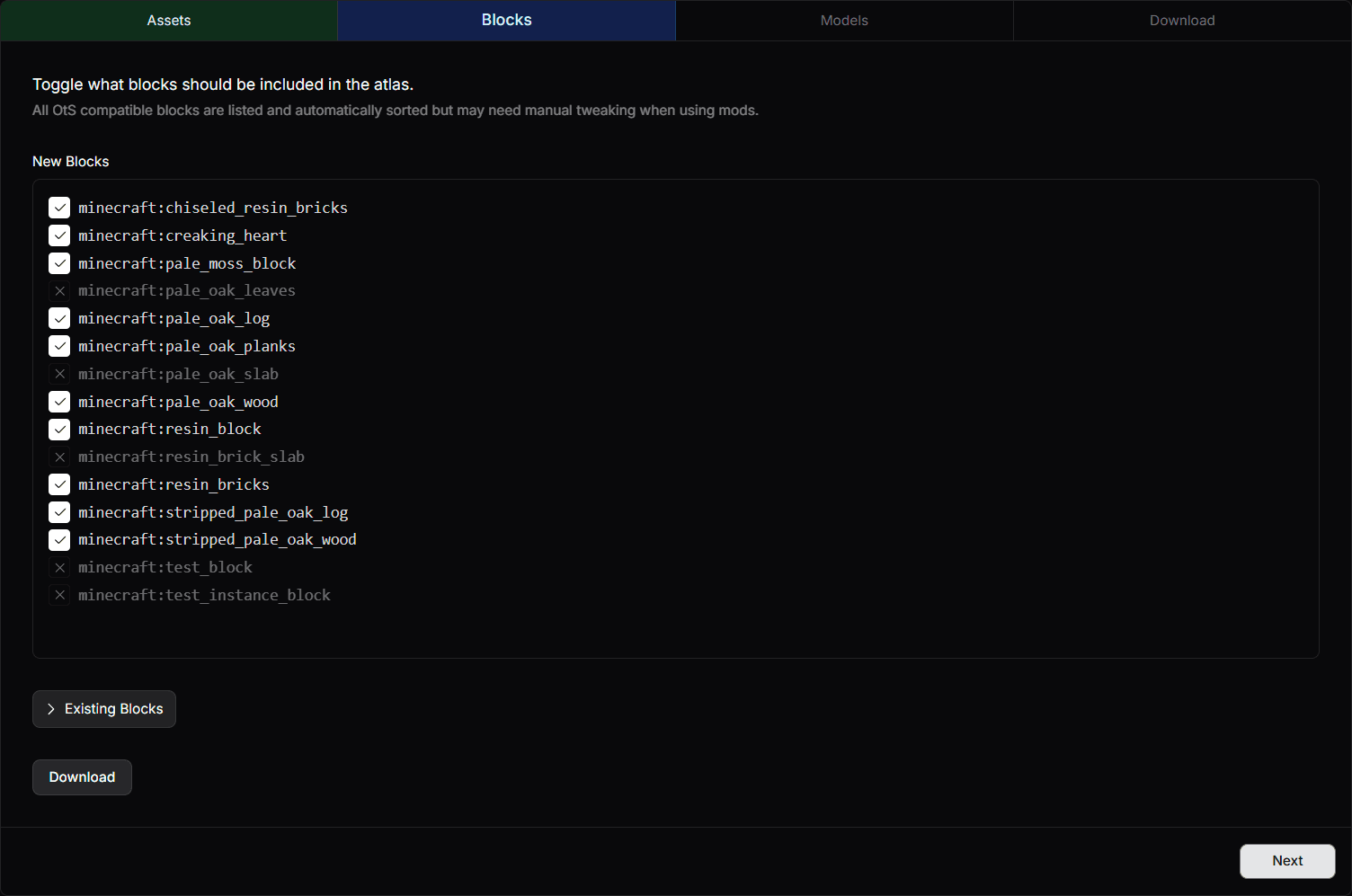
In the 'Blocks' tab are all blocks ObjToSchematic supports broken down into two lists of blocks:
- The 'New Blocks' list contains blocks added in the uploaded version of Minecraft.
- The 'Existing Blocks' list contains all the existing blocks in Minecraft.
If a block is not in either of these lists then it is not supported by ObjToSchematic. If a block is enabled then it be added into the atlas. If a block is disabled it will be ignored.
You will most likely not need to edit any of the blocks inside the 'Existing Blocks' list.
ObjToSchematic tries to automatically enable/disable blocks inside the 'New Blocks' list for you but may be incorrect so be sure to check this list before moving on.
When you are happy with your block selection, click 'Next' to move to the 'Models' tab.
3. Models
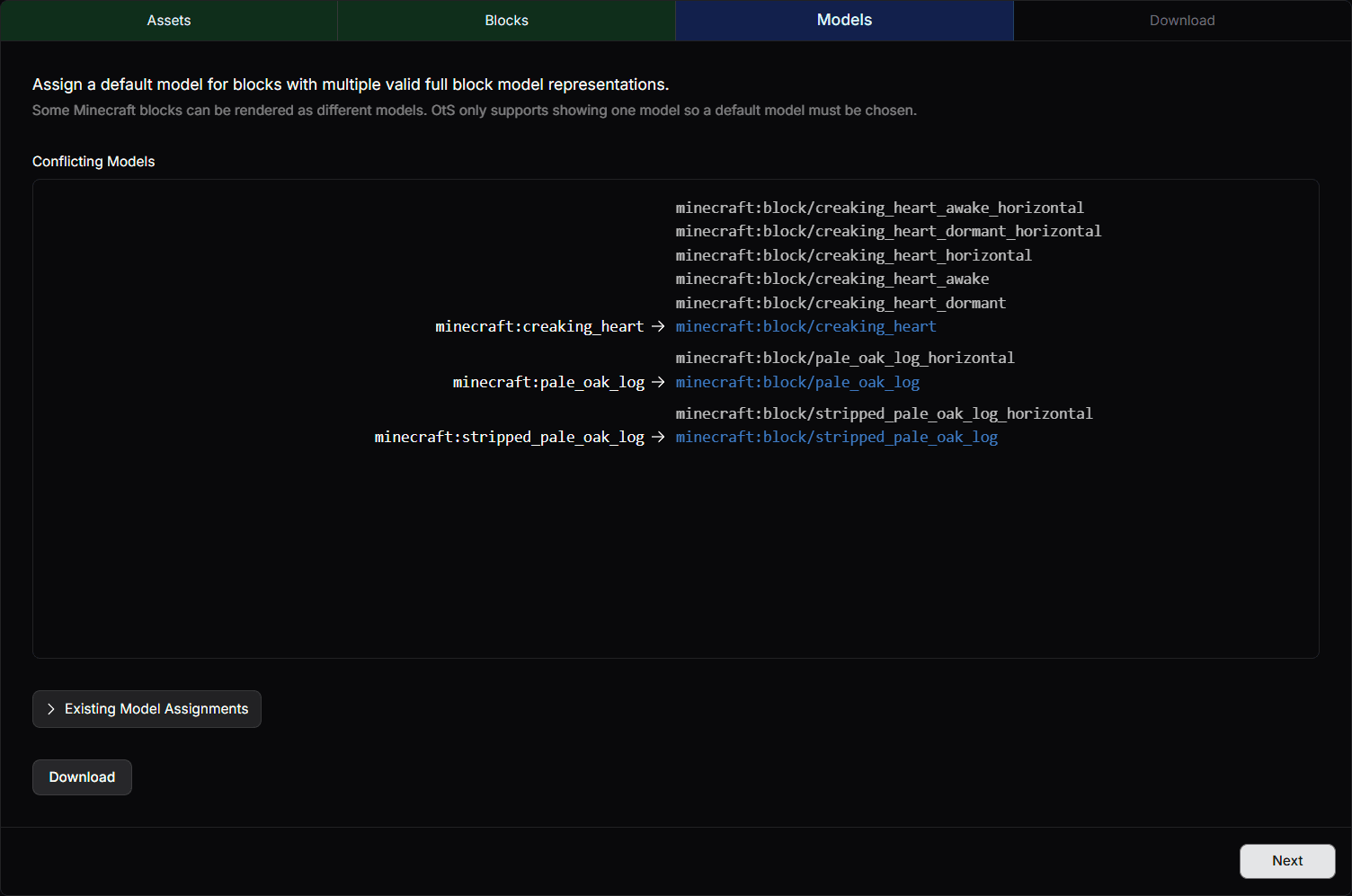
In the 'Models' tab is a list of blocks and their block models. If a block is in this list then ObjToSchematic found multiple valid block models that this block could be rendered as.
For example, a minecraft:oak_log block could be rendered in Minecraft as vertical or horizontal. However, in ObjToSchematic it must only be rendered either vertical or horizontal.
In this tab your job is to choose which block model to use for these blocks. ObjToSchematic tries to automatically assign a model for you but this may be incorrect.
When you hare happy with your model selection, click 'Next' to move to the 'Download' tab.
4. Download
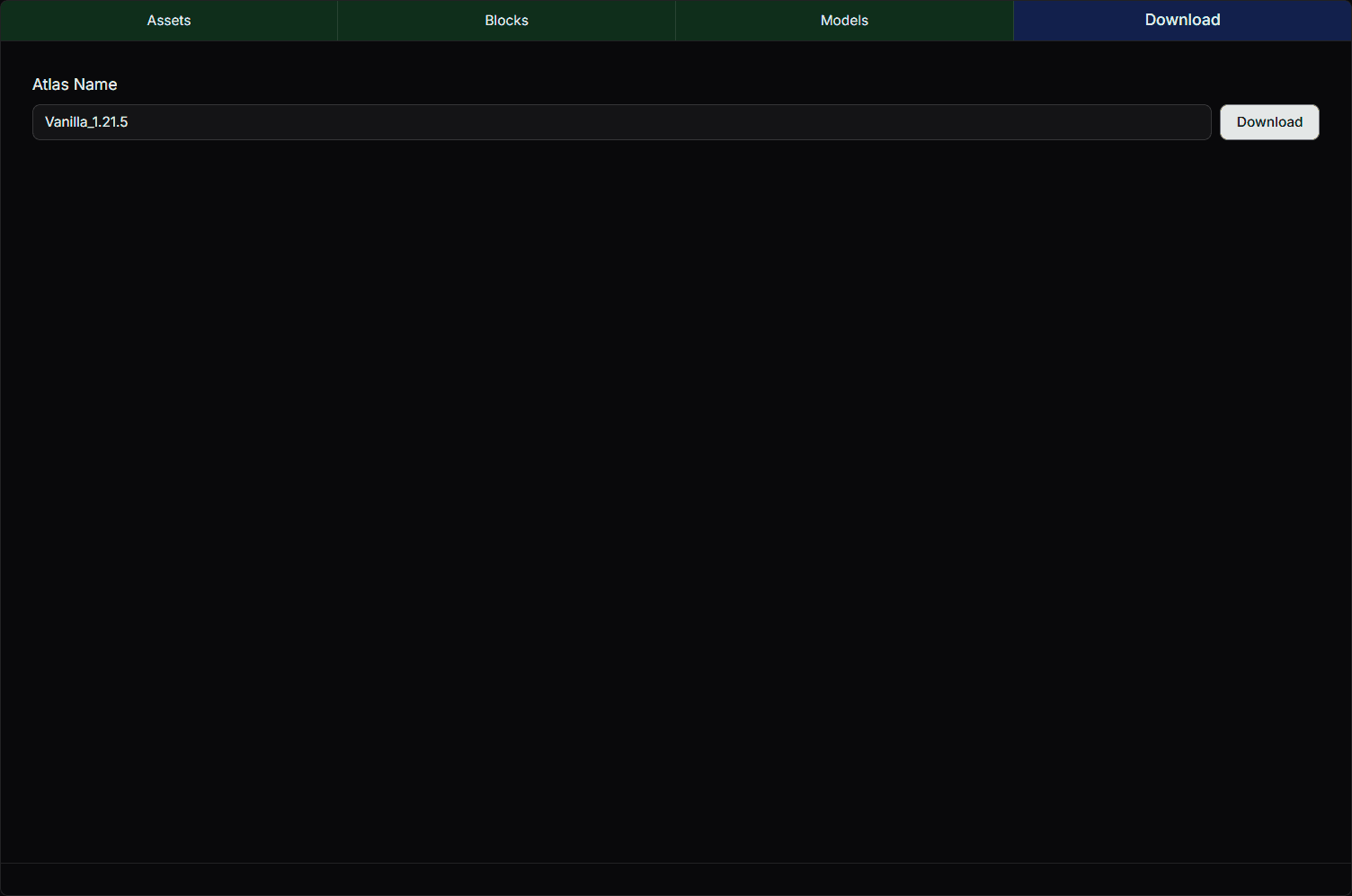
All that's left is to download your atlas! Make a name for your atlas and click the 'Download' button.
You should now have an .ots_atlas file for your custom atlas! You can upload this file when selecting a block atlas in the editor.