 ObjToSchematic Wiki
Voxel Modifiers
Apply procedural effects to voxels.
Voxel Modifiers allow you to add procedural effects to voxels. Modifiers are optional and are great for adding a unique style.
Dithering
Dithering is a noise overlay applied to prevent colour banding. This modifier uses an ordered dithering algorithm. The Magnitude setting determines the strength of the dithering pattern.
Noise
Noise applies a Simplex noise pattern to the voxels to introduce more varied colours.
The Scale setting determines the size of the noise. A low scale means the noise changes slowly and looks like a cloud. A high scale means the noise changes quickly like sand. The Magnitude setting determines the strength of the effect.
Quantisation
Quantisation reduces the number of unique voxel colours. It achieves this by binning colours.
The Factor setting determines the strength of the binning. A larger factor results in less unique colours.
Colour Palette
The colour palette modifier is a Pro modifier that replaces all voxel colours with the closest palette colour.
You add colours to the colour palette by picking the colour and clicking the Add button. You can also import/export colour palette files.
Clustering
Clustering is a Pro modifier that reduces the number of unique colours by clustering nearby colours together.
The Clusters setting controls how many clusters there are, this is also equal to the number of unique colours. The Iterations setting controls how many times the clusters are updated, more iterations is more accurate but slower. The Seed setting controls the starting locations of each cluster. You may only need to change this if you got unlucky.
Median Cut
The median cut modifier is a Pro modifier that reduces the number of unique colours by recursively cutting the colours along the longest dimension.
The Count setting controls how many unique colours should be remain after the cutting is finished.
Lua Script
The script modifier is a Pro modifier that lets you upload a Lua script to programatically modify/add/remove voxels. For more details, visit the Lua Scripting page.
Remap Colours
The Remap Colours modifier lets to replace all voxels of one colour with another.
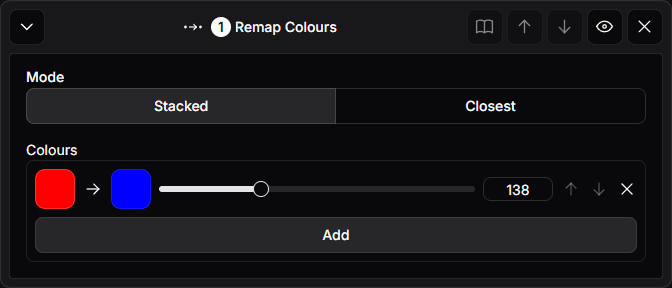
In the example above, the colour red will be replaced with blue voxels.
The slider determines the source colour's "influence", i.e. how close must any given voxel's colour be to the source colour for it to be converted to the target colour.
An influence of 1 results in only voxels that are exactly the same colour as the source colour being converted. An influence of around 60 is a good value for converting similar colours to the source colour.
You can add multiple colour mappings in the same modifier.
The "Mode" selector chooses how the remapping is applied. The "Stacked" mode applies the mappings one after another.
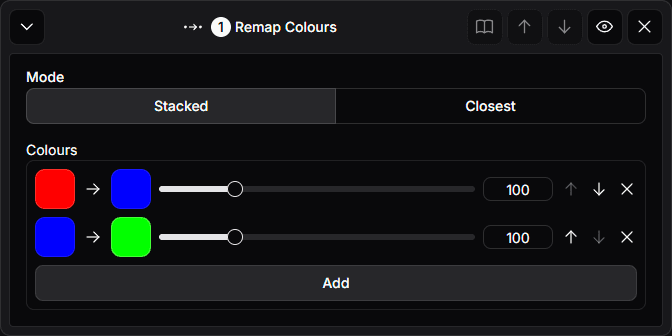
In the above example, all red voxels will first be converted to blue voxels and then all blue voxels will become green voxels. As a result, all red voxels will end up as green voxels.
If you were to the "Closest" mode instead then each voxel is only converted at most once. Which colour a voxel converts to is chosen by selecting the closest source colour within the influence range.