 ObjToSchematic Wiki
Editor Workflows
How to navigating your way through the editor.
The editor has two different workflows:
-
Wizard workflow - A beginner-friendly set of streamlined workflows for common use cases. Currently there are 4 workflows:
- Converting 3D models into blocks.
- Converting images into block pixel art.
- Generating 3D models from a text prompt then into blocks.
- Generating 3D models from an image prompt then into blocks.
-
Project workflow - The full-featured editor with advanced capabilities and complete control. It unlocks the following features not supported by the Wizard workflow:
- Voxel/block editing.
- Multiple scene objects.
- Duplicating scene objects.
- Saving/loading voxel/block structures as
.ots_voxels/.ots_blocksfiles. - Save/load projects as
.ots_projectfiles.
Wizard Workflow
When using the Wizard workflow, the editor is split into two panels: the Wizard and the Viewport panels.
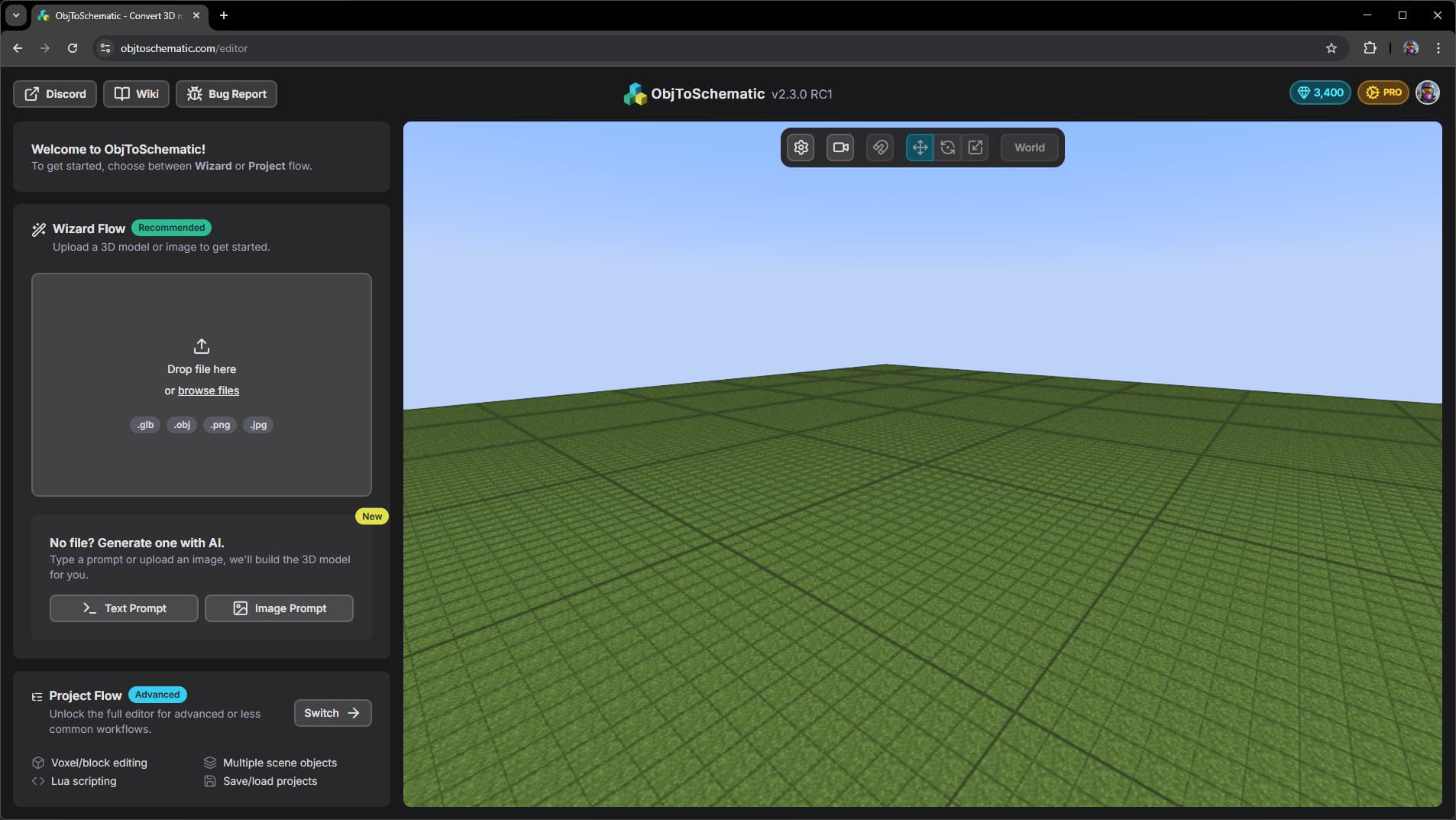
When you upload a file or choose to use the text/image prompts you'll be taken into the Wizard. The Quick Start guide goes over using the Wizard.
Project Workflow
When using the Project workflow, the editor behaves very differently.
Firstly, the UI has three panels: the Scene, the Viewport, and the Properties panels.
- Scene Panel - Shows all the scene objects currently in the world. Each scene object is either a Mesh object, a Voxels object, or a Blocks object.
- Viewport Panel - Renders each visible scene object.
- Properties Panel - Shows the details for the currently selected scene object.
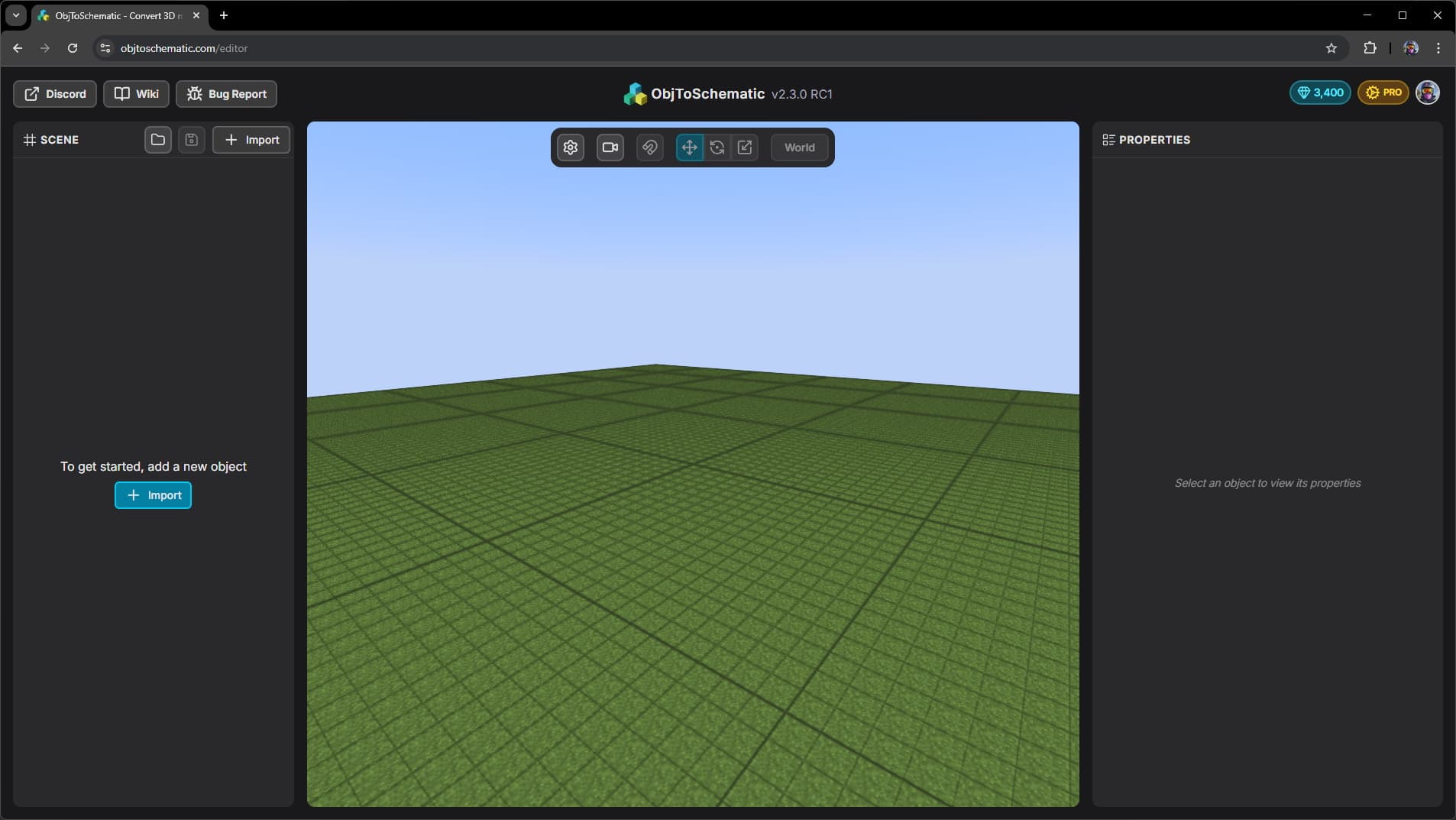
To get started you need to import something into the scene. You can do this by clicking the Import button in the Scene Panel.
The type of object you decide to import determines whether the newly created scene object is a Mesh object, a Voxels object, or a Blocks object. For example:
- If you import a
.glbfile then a Mesh object will be added. - If you import a MagicaVoxel
.voxfile then a Voxels object will be added. - If you import a
.ots_blocksfile then a Blocks object will be added.
Below is a diagram showing all the file types you can import and the type of object it'll create. It also shows all the file types you can export as. Finally it shows the action needed to convert from one object type to another.

For example, you may import a .glb file which creates a Mesh object.
You then click the 'Generate Voxels' button to create a Voxels object.
You then click the 'Generate Blocks' button to create a Blocks object.
Finally you can click 'Export As' button to export as a .litematic file for example.
Alternatively, you may instead import a skin statue which will import a Voxels object. From here you just click 'Generate Blocks' to get the final Blocks object.
Actions
Actions are operations you can perform on scene objects. They're the way you actually get things done in the Project workflow.
The actions you can perform depend on the type of scene object you have selected. When you have an object selected look in the Properties tab and in the 'Actions' section will show you all the things you can do.